 ProfCalendar
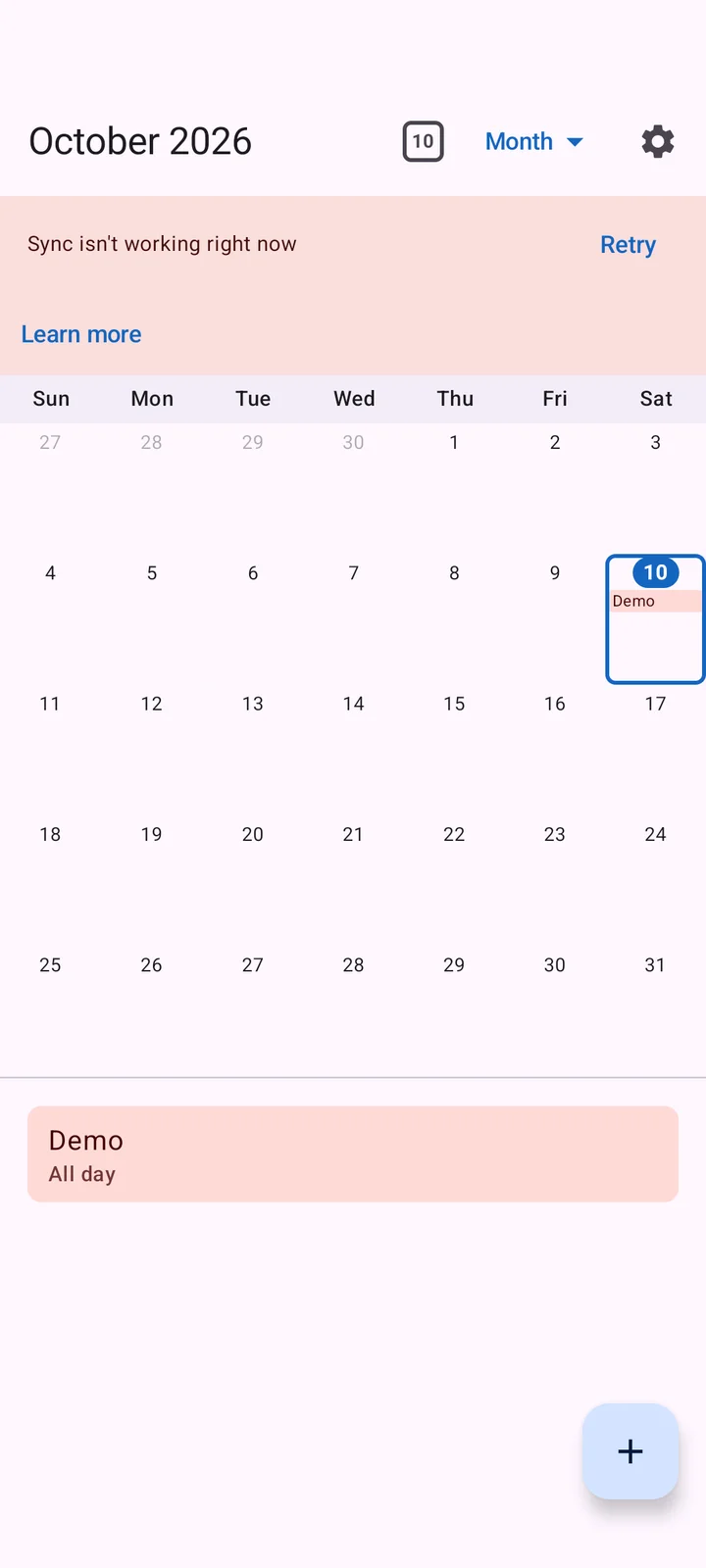
Android saves event edits locally before sending them. The browser needs a connection. A sync banner explains whether the connection, session or app version needs attention.
- Restore internet access and reopen ProfCalendar.
- On Android, open Settings and tap Sync now. Check the last successful sync. In the browser, retry after reconnecting.
- Confirm both devices use the same account and that the calendar is visible.
Calendar creation, membership changes and comments need the server. Avoid signing out or clearing app data while local edits are pending: signing out wipes the local copy. If two people edit the same event offline, the last change received by the server wins.
If it still doesn't work
Check sync help or contact support. Tell us the app version and what you tried; never send passwords or private calendar contents.